
Looking for a fast, hassle-free tutorial on how to setup IPTV on your television, streaming stick, tablet, or PC? Setting up your 4K IPTV Live subscription takes less than 3 minutes. In this complete installation guide on how to setup IPTV, our engineers walk you through step-by-step instructions for Amazon Firestick, Android TV, Samsung & LG Smart TVs, Apple iOS, and Windows.
Step-by-Step Instructions: How to Setup IPTV by Device
🔥 1. Amazon Firestick & Fire TV
- From your Firestick Home Screen, go to Find > Search and type Downloader. Install the official app.
- Open Firestick Settings > My Fire TV > Developer Options and enable Install Unknown Apps for Downloader.
- Open Downloader and enter the quick download code for TiviMate or IPTV Smarters Pro.
- Launch the player, select Xtream Codes API, and enter the Server URL, Username, and Password sent to your WhatsApp.
- Click Add User. Your channels, movies, and EPG guide will load immediately!
📺 2. Android TV & Google TV
- Turn on your Android TV, Chromecast with Google TV, or Nvidia Shield.
- Open the official Google Play Store on your television.
- Search for TiviMate IPTV Player or XCIPTV Player and click Install.
- Open the installed application and choose Add Playlist.
- Select Xtream Codes login, type in your login details, and click Connect.
🖥️ 3. Samsung Tizen & LG webOS
- Open your TV's application store (Samsung Smart Hub or LG Content Store).
- Search for IBO Player, Smart IPTV, or Nanomid Player and install it.
- Launch the app to reveal your TV's unique Device MAC Address and Device Key on the screen.
- Send your MAC address to our WhatsApp Support Desk, or upload your M3U link via the app's web portal.
- Restart the app on your Smart TV to enjoy 4K streaming.
🍎 4. Apple iOS, iPad & Apple TV
- Open the official Apple App Store on your iPhone, iPad, or Apple TV 4K.
- Search for Smarters Player Lite or GSE Smart IPTV and download it free.
- Open the app and tap Add New User via Xtream Codes API.
- Enter any profile name, followed by your Username, Password, and Server Portal URL.
- Tap Login to synchronize all live channels and VOD libraries.
💻 5. Windows PC & Mac OS
- Download and install IPTV Smarters Pro for Windows/Mac or the open-source VLC Media Player.
- If using IPTV Smarters, enter your Xtream Codes API login credentials directly.
- If using VLC, click Media > Open Network Stream (Ctrl+N) and paste your M3U Plus playlist URL.
- Click Play. Use the Playlist window (Ctrl+L) to navigate channel categories.
📦 6. MAG Boxes & Formuler Z
- Go to MAG Settings > System Settings > Servers > Portals.
- Set Portal 1 Name to
4K IPTV Live. - Enter our Portal URL into the Portal 1 URL field.
- Provide your device's 00:1A:79:XX:XX:XX MAC address to our WhatsApp support team for instant MAC binding.
- Reboot your MAG device to access the Stalker middleware interface.
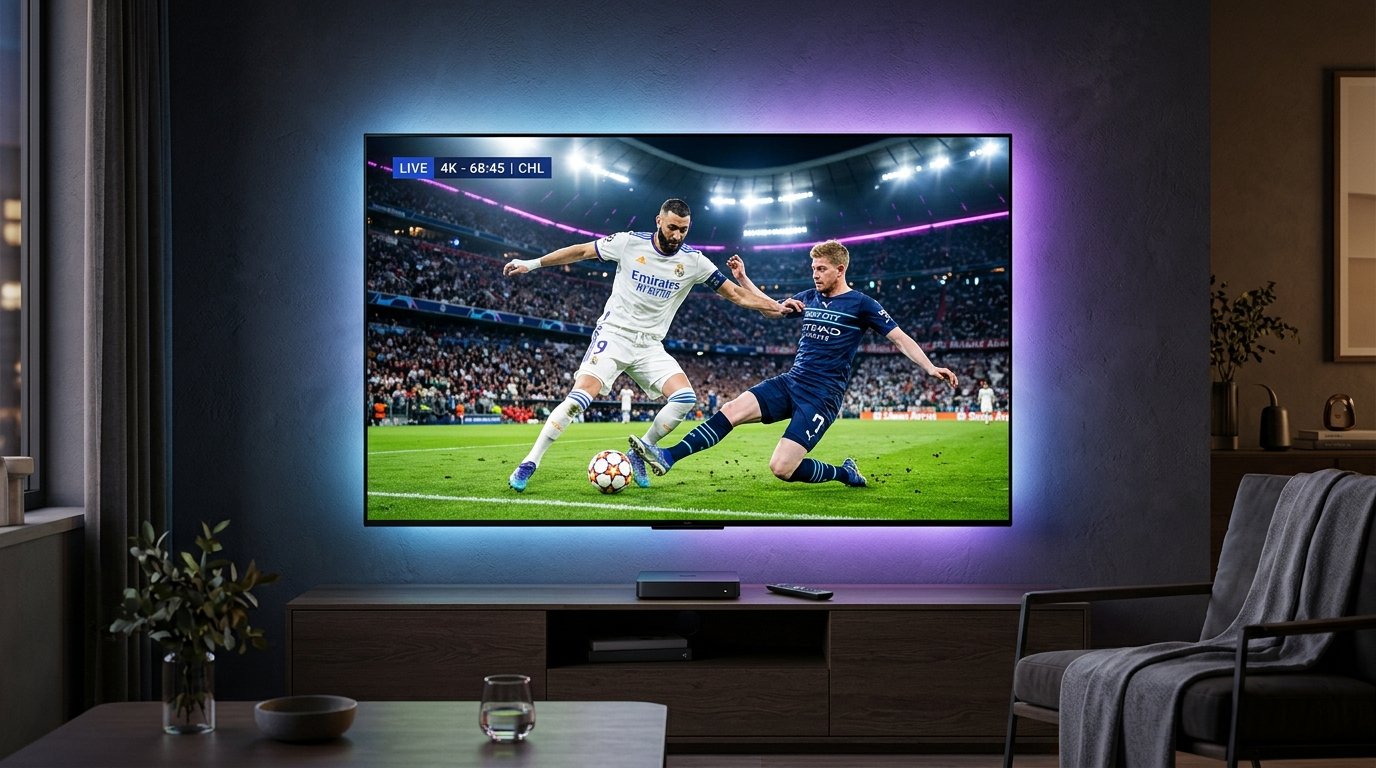
Essential Tips for the Smoothest 4K Streaming Setup
To guarantee zero buffering, lag, or stuttering while watching live sports in 4K, keep these essential technical tips in mind:
- Use 5 GHz Wi-Fi or Ethernet: Traditional 2.4 GHz Wi-Fi suffers from household interference. For flawless 4K 60 FPS sports, connect your Firestick or Smart TV via an Ethernet cable or 5 GHz Wi-Fi band.
- Clear Player Cache Regularly: Over time, EPG data and channel thumbnails accumulate in your app's memory. Clearing the app cache once a month keeps navigation snappy. Read our guide to fixing IPTV buffering for more optimizations.
- Consider a Streaming VPN: If your ISP throttles high-bandwidth video traffic during peak evening hours or major soccer games, running a VPN with the WireGuard protocol completely eliminates ISP throttling. See our VPN for IPTV guide.
Need One-on-One Installation Assistance?
Don't want to configure your device alone? Our technical support engineers are available 24/7 on WhatsApp. Simply message us with your device model, and we will guide you through the process step-by-step.
Message our live support team at +33644650967 for instant assistance with setup, app downloads, or free playlist testing!